Autopilot Firmware
AntennaTracker
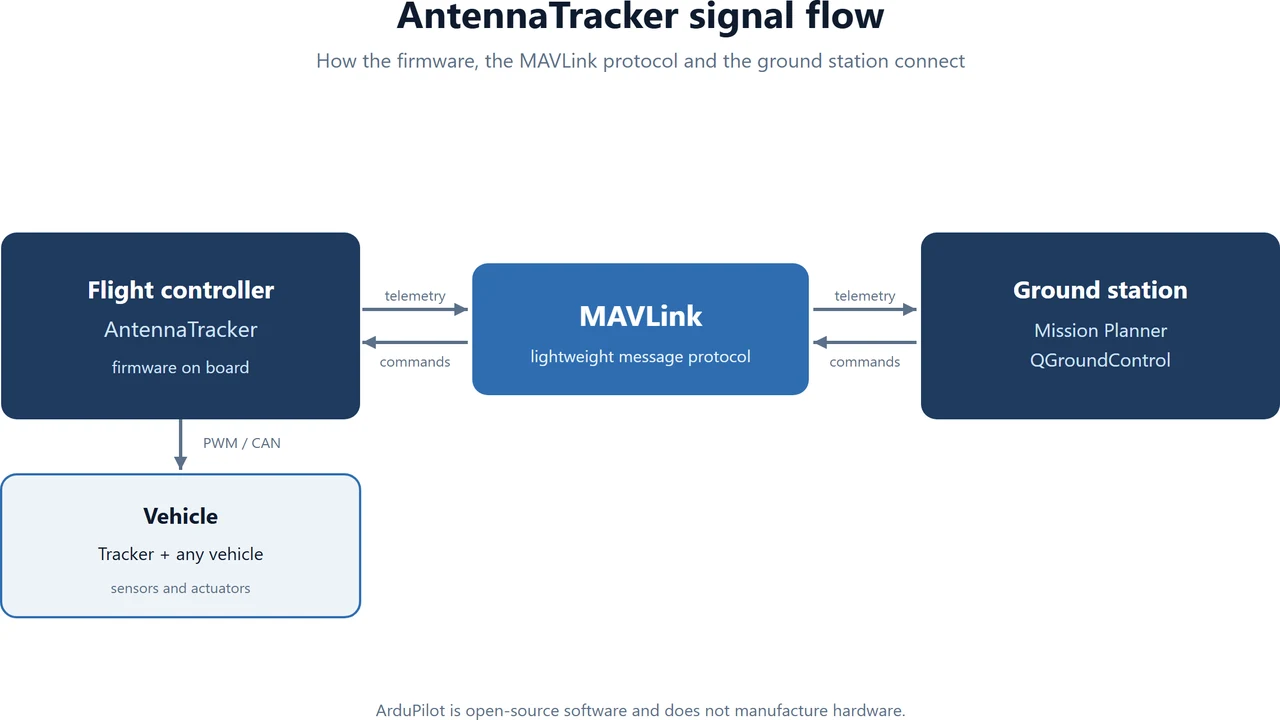
Open-source antenna tracker firmware that keeps a directional antenna pointed at a vehicle using GPS telemetry over the MAVLink protocol.
Capabilities below are vendor-documented. We have not tested this device or its integrations.
Sources checked:
Also known as: AntennaTracker, ArduPilot antenna tracker firmware, GPS antenna tracker
Suitable projects
- Extending control and video range for long-distance aircraft and rovers.
- Maintaining a strong link during autonomous missions.
- Field deployments where fixed omni antennas are insufficient.
Before you buy
- Firmware only; a tracker frame, servos and telemetry radio must be supplied separately.
- Pointing accuracy depends on correct servo calibration and GPS lock at both ends.
Official resources
Related guides
- Function
- Azimuth and elevation antenna pointing at a tracked vehicle
- Input
- Vehicle GPS position over MAVLink telemetry
- Modes
- Manual, Auto, Servo Test
- Servo axes
- Yaw (azimuth), pitch (elevation)
- Configured via
- Mission Planner, QGroundControl, MAVProxy
- Licence
- GPL-3.0
Choosing AntennaTracker
This profile is based on official documentation, not our own device testing.
AntennaTracker is the firmware that keeps a directional antenna pointed at a moving vehicle. It is a small member of the ArduPilot family and pairs with any aircraft, rover or boat that sends its position over MAVLink telemetry.
Choose your axes
| Axis | Purpose |
|---|---|
| Yaw (azimuth) | Points the antenna left and right toward the vehicle |
| Pitch (elevation) | Tilts the antenna up and down for altitude |
A two-axis tracker covers most field use. Single-axis builds are possible for low-altitude, line-of-sight work.
Choose your servos
Pick servos with enough torque and travel for the antenna mass. Calibrate the centre and end points so the tracker moves through the full sky without binding.
Choose a flight controller
AntennaTracker runs on small autopilot boards. Confirm your controller in the board support guide, then load the AntennaTracker build. A GNSS module on the tracker is not required, but the tracked vehicle must broadcast its position over MAVLink.
Feature checklist
- Manual mode for hand aiming.
- Auto mode that follows the vehicle telemetry.
- Servo test mode for calibration.
- Pairs with any MAVLink vehicle for longer control and video range.
Pointing accuracy depends on servo calibration and GPS lock at both ends.
Getting started with AntennaTracker
This profile is based on official documentation, not our own device testing.
1. Gather your hardware
- A supported controller
- Two servos for yaw and pitch
- A directional antenna and a telemetry radio
- A computer with Mission Planner or QGroundControl
2. Install the firmware
Connect the board over USB and use the ground control station to flash the AntennaTracker firmware for your board. Confirm the board family in the board support guide first.
3. Connect and configure
Connect the servos to the assigned outputs and set the tracker as the vehicle type.
4. Calibrate the servos
Use servo test mode to find the centre and end points, then set the limits so the antenna sweeps the full sky without binding.
5. Track a vehicle
Switch to Auto and let the tracker follow a vehicle that broadcasts its position over MAVLink. In Manual mode you can aim by hand to confirm servo direction.
AntennaTracker FAQ
This profile is based on official documentation, not our own device testing.
Does the tracker need its own GPS?
No. The tracker follows the vehicle position that the vehicle broadcasts over MAVLink telemetry.
Which vehicles can it follow?
Any ArduPilot aircraft, rover or boat that sends its position over MAVLink can be tracked.
How many servos do I need?
Two servos cover yaw and pitch, which is enough for most field use. Single-axis builds are possible for low-altitude work.
How do I calibrate the servos?
Use servo test mode to find the centre and end points, then set limits so the antenna sweeps the sky without binding.
Can the tracker run other firmware?
A board is normally flashed with one firmware at a time. Choose the firmware that matches your device.